Linking IDs
Players link their game accounts (Steam, Alderon, Xbox) to their Discord identity so Arkanis can track them across platforms. This is the foundation of cross-platform enforcement and player identity.
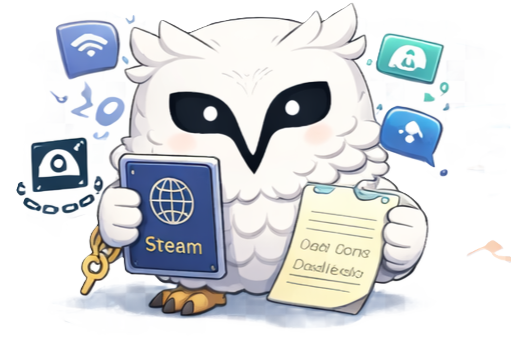
Every player in Arkanis is a stitched-together identity: Discord, Steam, Alderon, and Xbox all tied to one profile. Linking is what makes cross-platform enforcement and lookups possible.
What is this?
Three ways for a player to tie their Discord account to their in-game identity: dashboard OAuth (Steam or Xbox sign-in, automatically verified), the bot link panel (manual ID entry, fast but self-reported), and in-game verification (the bot issues a code the player types in game chat, the strongest proof of ownership).
Why you might want it
Why a member's Discord and their in-game name are different, and how to tie them together so enforcement actually crosses platforms. Without linking, a ban on Discord doesn't mean anything to the game server, and vice versa. With it, one player passport covers every platform they play on.
Three Ways to Link
Arkanis offers three methods for linking game accounts, each with different levels of trust and convenience:
Players sign in through the official Steam or Xbox login page directly from the dashboard. The account is automatically verified. No manual ID entry, no risk of typos or fake IDs.
Players type their ID manually via /player panel → Link IDs. Quick, but self-reported: the player could type any ID.
Player receives a code from the bot, then types it in-game chat. Arkanis detects the code via SFTP, FTP or RCON and confirms the link. Strongest proof of ownership.
Dashboard OAuth (Recommended)
The dashboard uses OAuth2 to let players authenticate directly with Steam or Xbox. This is the most secure method because the player proves account ownership by signing in. Arkanis never sees their password.
Player Opens the Dashboard
The player signs into the Arkanis dashboard with their Discord account, then navigates to their server.
Go to the Players Page
From the sidebar, click Players. The page shows the player's own passport with "Connect Steam" and "Connect Xbox" buttons if those providers are enabled.
Click Connect
The player clicks Connect Steam or Connect Xbox. They're redirected to the official platform login page (steamcommunity.com for Steam, login.microsoftonline.com for Xbox).
Authorize and Return
After signing in on the platform, the player is redirected back to the Arkanis dashboard. The link is created automatically with the correct account ID, display name, and avatar, and marked as OAuth verified.
Bot Panel (Manual Entry)
For players who prefer to stay in Discord, they can link accounts manually through the bot panel. This is faster but self-reported: the player types their ID without proving ownership.
Open the Player Panel
The player runs /player panel in any channel and selects Link IDs from the dropdown.
Choose a Platform
The bot shows a selection menu with the platforms your server has enabled (Steam, Alderon). The player picks one.
Enter the ID
A modal appears where the player types their account ID:
- Steam: 17-digit SteamID64 (for example,
76561198012345678) - Alderon: Alderon ID (for example,
123-456-789)
Submit
The player submits the modal. Arkanis confirms the link with an ephemeral message and adds the ID to their passport as self-reported.
Admin: Linking an ID for Another User
Moderators can link or unlink IDs on behalf of players. This is useful for appeals, manual corrections, or onboarding players who can't complete the flow themselves.
Open the Player Panel
Run /player panel and select Link ID for User from the Admin dropdown.
Choose the Target Player
A modal prompts you for the target Discord user (by mention or ID) and the platform (Steam or Alderon).
Enter the ID to Link
Type the Steam ID or Alderon ID to link. Submit the form.
Confirm
Arkanis creates the link as admin-attested. The action is recorded in the audit trail with your Discord ID as the actor.
In-Game Verification
For the strongest proof of ownership, players can verify by entering a code in-game. This proves the player actually has access to the game account, not just the ID number.
Player Requests a Code
The player opens /player panel and selects Verify ID from the dropdown. Arkanis generates a unique 6-character code and sends it in an ephemeral message only the player can see.
Player Types Code In-Game
The player joins the game server and types the verification code in the in-game chat. Arkanis monitors the server logs (via SFTP, FTP or RCON) for the code.
Arkanis Confirms the Link
When Arkanis detects the code in the game logs, it automatically upgrades the link to verified. The player receives a confirmation message in Discord.
What Linking Enables
Once a player has linked their accounts, Arkanis unlocks powerful cross-platform capabilities:
- Cross-platform enforcement: a ban issued in Discord can automatically apply in-game. Strikes follow the player across platforms.
- Identity resolution: look up any Steam ID and instantly see the Discord account behind it (and vice versa).
- Log correlation: in-game events (kills, rule breaks, chat messages) are attributed to specific Discord users.
- Verified roles: require players to link and verify before accessing certain channels or features.
Viewing and Managing Links
Moderators can view all of a player's linked accounts from the Player Passport in the dashboard. Each linked account shows:
- The platform (Steam, Alderon, Xbox)
- The account ID and display name
- Verification method: OAuth, self-reported, or in-game verified
- When the link was created